Get to know ETQ Reliance layout
ETQ Reliance offers you a thoughtfully designed, clean, and easy-to-use layout. Take a quick overview of your assignments, training documents, delegations, and charts through your designated Homepage, navigate through the applications view, and have your assignments done!
System layout
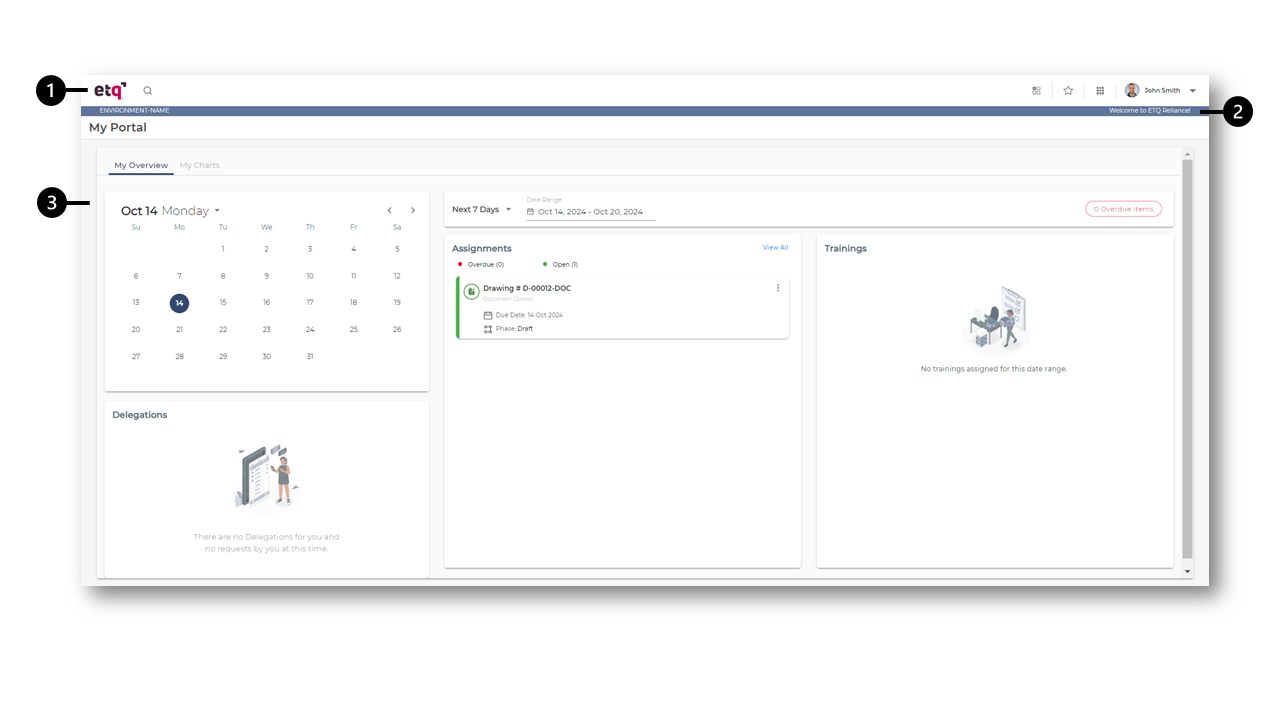
The Reliance system has three main areas:
-
The Main header is persistent throughout the system pages. It has:

-
Homepage shortcut: Click on the ETQ logo to go to your homepage.
-
Open application card: This card shows the currently open application name with an
 icon to close the application along with its open documents.
 -
Search: Click the search icon to open the search field and search among Reliance applications.
-
Default application: The Default application icon
 shows when you set a default application.
 -
Favorites menu: Besides your favorite applications, views, and documents, the Favorites
.png) menu shows the external links configured for you by your administrator through your homepage profile.
menu shows the external links configured for you by your administrator through your homepage profile. -
All Applications: This icon opens the All Applications page.
-
Your Avatar, User Name, and User Menu: Click on your avatar image or
 to open the User Menu, which allows you to do the following tasks based on your access:
All users can:
Log out from Reliance.
Open the online help.
Open the Reliance Privacy Policy page.
Users with administrator access can also see the System Actions menu, which allows them to take the following actions:
Open the About Reliance dialog.
Open the System Preferences page.
Open the system log page.
Open the User Session Status dialog.
Log out all users.
-
-
Administrators can customize the Banner bar through System Preferences.
-
Displays the page name and + New Application action when the user has sufficient access to create a new application.
-
Page content areaPage content area
This area is designated for the currently opened page whether it is your Homepage, All Applications, Application, or a Document.
|
|
|