Set up your preferences, shortcuts, and favorites!
Personalize your account using the following features.
Change your Avatar image
Your avatar will distinguish you throughout the system. It will show on your user menu and next to each comment you add in Reliance documents.
Once your account is created, you'll be assigned a unique default avatar with your user initials.
To change your default Avatar image:
-
Select Edit My Profile under the user menu
 .
. -
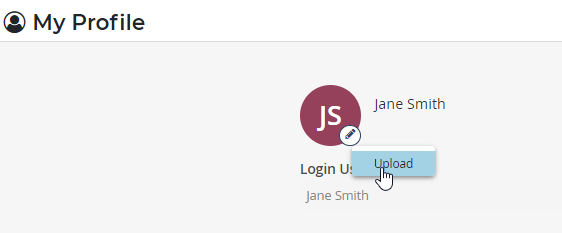
Click on the small edit icon on the Avatar image. This will show an Upload action.
-
Click on the Upload action and then browse through the native browser window to select your avatar image. Remember that the avatar image size cannot exceed 50 KB. The image you select will replace the default avatar image.
-
Click Apply & Close.
To remove the avatar image and restore the default one:
-
In the Edit My Profile page, click on the small edit icon on the Avatar image.
-
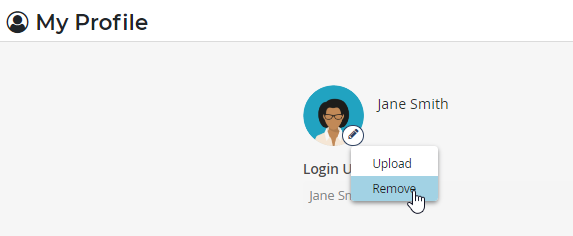
Click on the Remove action that will show when you have a modified avatar image.
-
Click Apply & Close.
Change your Time Zone and Language
When you change your language to a language that has localization enabled, the Reliance interface language will change to the selected one after you log out and then log in again.
Set a Default Application
When you set a default application, it will open for you once you log into the system instead of your homepage. Also, a shortcut icon  to the default application will appear in the main bar for quick access if the default application is closed.
To set up your default application:
-
Select Edit My Profile under the user menu
. -
Select the Default Application from the list of applications available for you to access.
-
Click Apply & Close.
-
Log out and log in again to land on the default application you selected.
-
Close the default application to see the default application shortcut icon
in the main bar.
Change your password
-
Select Edit My Profile under the user menu
. -
Click Change Password. This will open extra fields.
-
Type your Current Password, New Password, and Re-enter New Password.
-
Click Change. Your password will be changed successfully if you've followed the password rules set for you by your administrator.
-
Click Apply & Close.
Mark your favorite applications, views, and documents
You can mark your frequently used applications, views, and documents as your favorites so you can quickly access them through the favorites .png) menu on the main bar.
menu on the main bar.
To mark applications as favorites:
-
Open the All Application page.
-
Click on the
icon shown on the intended application card.
Note: A Designer can favorite an application or its corresponding archive application (if applicable) in designer mode through the Reliance Designer Tab.
To mark views as favorites:
-
Open the application of the intended view.
-
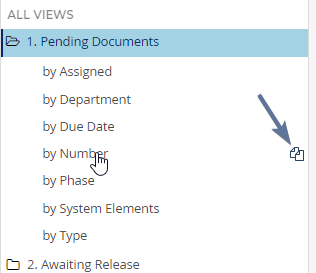
Hover over the intended view in the views navigation bar to show the copy view icon.
-
Click on the copy view icon. This will open a field to edit the name of the view to be favorited under the My Views category. Optionally, edit the view name and click on the checkmark to save your edits.
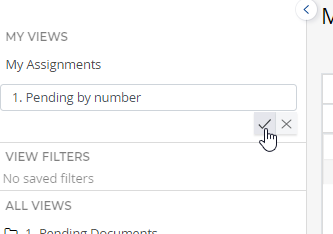
The view will be copied to the MY VIEWS section of the application's view navigator, and it will be accessible through the Favorites menu > Views category.
To mark documents as favorites:
-
Open the application of the intended document.
-
Find the intended document and open it.
-
Click on the
icon within the document toolbar.
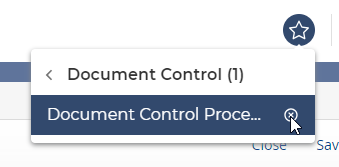
The marked document will be accessible through the Favorites menu > Documents category. The documents will be classified into sub-menus according to their parent applications under the Favorites menu > Documents category. Each application sub-menu will show a number indicating how many favorite documents it has.
To unfavorite a document, you can either click again on the  action on the favorited document or click on the remove action next to the document on the Favorites menu.
|
|
|