Application Page
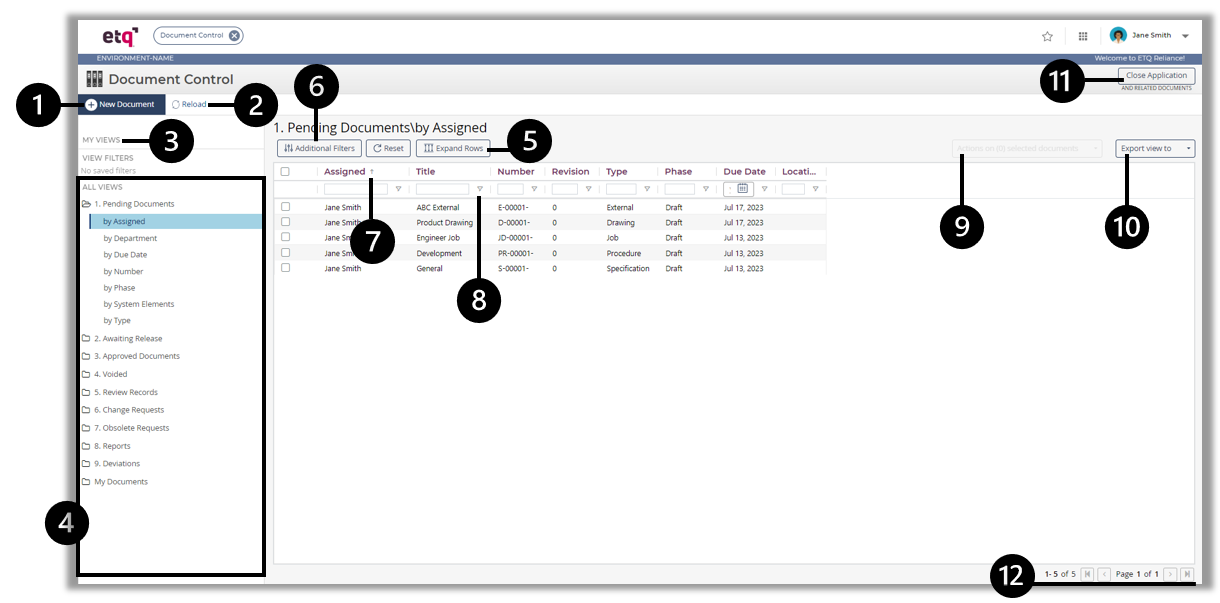
All applications in Reliance have the same look and feel. We're going to use the Document Control application as an example to explain the application layout.
The Application Card and Name will be displayed with the opened application name. Remember that you can close the application from the application card shown in the Main header.
Each application has the following components.
-
The New Document menu allows you to create a new document of the available types according to what is configured for the current application.
Click on New Document, select the intended type, and a new document tab will open.
-
Click on Reload to update the documents listed in the view with new or modified documents' information without resetting the applied sorting/filtration.
-
The My Views section contains:
- My Assignments View: This view shows all documents assigned to you across all types and is displayed by default with the following columns: Type, Phase, Number, Due Date, Title (Displays the value configured in the Document Form Title field of the related Form Setting.)
-
Favorite View: You can copy any of the application's views under the My Views section for quick access. The copied views will also appear under the Favorites menu of the Main header.
To mark a view as a favorite:
-
Open the application of the intended view.
-
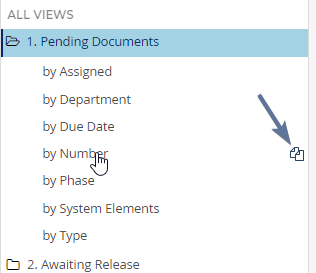
Hover over the intended view in the views navigation bar to show the copy view icon.
-
Click on the copy view icon. This will open a field to edit the name of the view to be favorited under the My Views category. Optionally, edit the view name and click on the checkmark to save your edits.
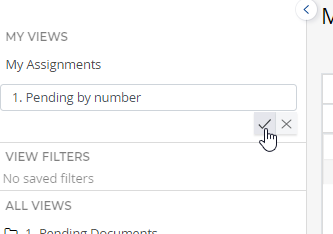
The view will be copied to the MY VIEWS section of the application's view navigator, and it will be accessible through the Favorites
.png) menu > Views category.
menu > Views category. -
Views NavigatorViews Navigator
The Views Navigator shows all of the application's views.
-
Expand Rows and Collapse RowsExpand Rows and Collapse Rows
These two actions show interchangeably to Show/hide complete record information.
 You can also click and drag a column end to expand its width.
 -
Additional FiltersAdditional Filters
Click on Additional Filters and choose from the options that are set for you to apply them on the view records.
-
Click on a column header to use for records sorting Ascending or Descending. You can also hold the Ctrl key and click on multiple columns to use for sorting.
 Columns that contain links (e.g., Related Documents in Document Control) or colors cannot be filtered or sorted. The "contains" filtering option does not work when filtering columns of type number.
 -
Filter out the view content based on a column(s) value.
-
If you are granted sufficient access, you will be able to perform specific actions through views on the documents you select.
-
You can export a view content into a PDF or Excel spreadsheet.
-
Close ApplicationClose Application
This action closes the current application and all of its open documents.
-
View Pagination ControllersView Pagination Controllers
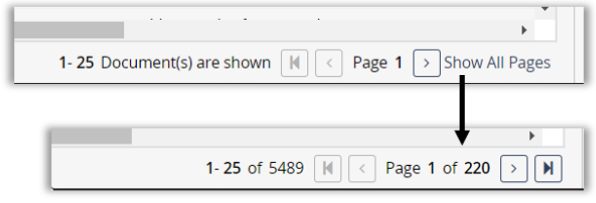
By default, the page size of all Reliance views is set to 25 records. The count shows which documents are displayed out of the documents' total number on the first page (e.g., 1-25 of 25), which reads like this (the first through the twenty-fifth cards are displayed out of twenty-five cards in all). Remember, this is on the first view page.
Now, you can either use the navigation icons to move to the next page or click on Show All Pages to show the actual records count and the total view pages.
|
|
|