Search on ETQ Reliance
(This feature is disabled by default and requires configuration to show the Search bar.)
How to search?
To search for records or profiles containing a specific text, click the search icon, type the text you want to search for in the displayed field, and press Enter.
Notice that:
Special characters at the beginning or end of the search text will be ignored when retrieving the search results. For example, if you search for #!@Doc, the system will find results with Document, Doc11, #!@Doc, and #!@Document.
Words that do not start with the search text will be ignored when retrieving the search results. For example, if you search for “view”, the system will ignore results with the word “Review”.
Search Results
The Search Results page has the following components:
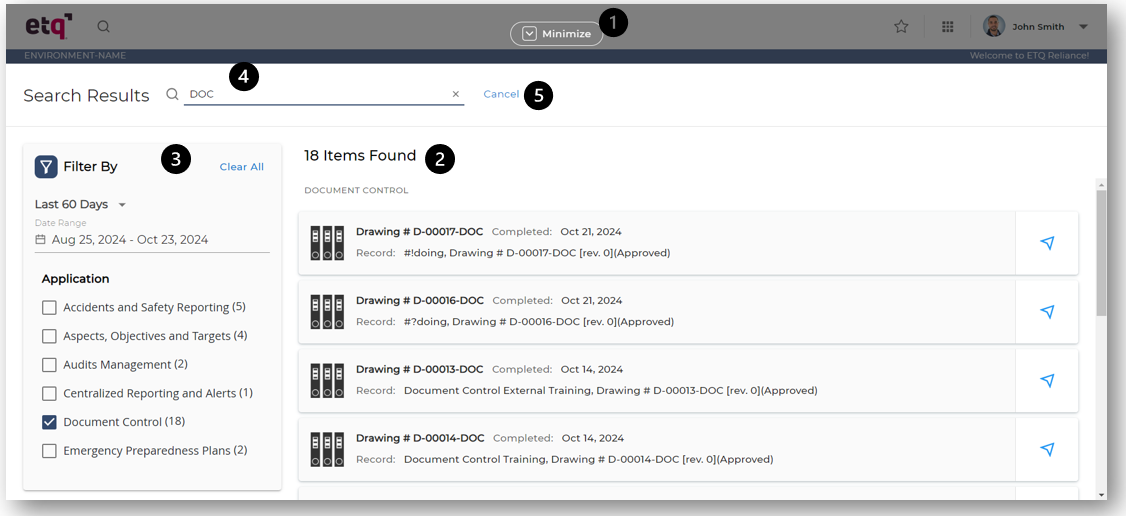
-
You can minimize the Search Results page and navigate Reliance without losing the search results.
Sometimes, the Search Results page may take some time to load, depending on the data being searched. If you minimize the page while the search results are loading, the process will continue.
While the Search Results page is minimized, the following actions will appear on the main header: Search Results and Cancel.

Click Search Results to return to the Search Results page.
Click Cancel to clear the search results.
-
The items found are categorized by their parent application. Each application category can have up to 100 items, with 10 items shown at a time. You can navigate through the items using the pagination arrows located under each application category.
Notice that!
If more than 100 items are found for a specific application, only the first 100 items will be retrieved. In this case, try entering a new search text or use the date range filter to narrow down the results.
The system will filter out from the search results any items you do not have standard access to (e.g., Manager, Author, Reader), even if they contain the searched text. However, if a record or a profile has additional security or location security preventing you from opening it, it will still appear in the search results if it contains the searched text and will allow you to send notifications about it. In such cases, you will receive an error message when you attempt to open it.
Each item found is displayed on its own card. An item card allows you to:

Open the found item: Click on the item card to open the related item and minimize the Search Results page.
Notify other users about a found item: Click on the notify icon to the right of an item card to open the Send Notification dialog. In this dialog, select the notification recipient from the Send To field, edit the Subject field, which will default to the document description, specify the notification Body text, and click Send.
-
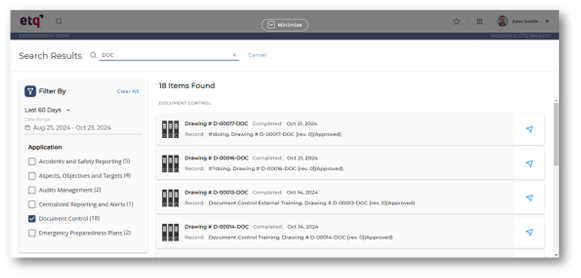
Use the available filters to narrow down the search results and focus on the most relevant items. The Search Results page allows you to filter by:
Date: Filter results by creation date for non-workflow documents (profiles) and the completion date for workflow documents (records). You can select from the predefined date ranges, including Last 30 Days, Last 60 Days, Last 90 Days, Last 6 Months, and Last 12 Months, or you can click on the Date Range fields to specify a custom date range.
Application: Filter the results by selecting parent applications of the found items.
Notice that!
The Date and Application filters are connected using an "AND" relationship. For example, if you filter by “Last 60 Days” and “Document Control”, the results will display only the items from the Document Control application that were approved within the last 60 days.
-
You can edit the Search bar even after the search results are loaded, but press Enter to update the results after making changes. To clear the search field, click the X icon.
-
Click Cancel to clear the search results and close the Search Results page.
What is searchable content?
Searchable content refers to specific text strings that can be found only within the content of completed records (approved documents) and profiles (non-workflow documents). This includes the text string found in:
Names, Keywords, Text, Text Area, and Rich Text fields.
The content, titles, extensions, and embedded objects of attachments with the following extensions: .rtf, .doc, .docx, .docm, .xls, .xlsx, .xlsm, .pdf, .txt, and .msg.
Comment History, Electronic Signature (except for the Date field), Phase Tracking, Additional Document Security, and Revision History sections of all forms.
The answers of Decision Tree system sections.
The search does not support:
The ETQ Reliance Engine, Administration Center, and Delegation system applications.
Archive applications.
The Field History section of all forms.
The documents that have populated searchable fields exceeding 20K.
The content of the password-protected files.
The Email Log dialog.
The attachment files with content exceeding 5 million characters or 5G.
The collaboration attachments' content (e.g., 365 Attachments and Google Docs).
Office Open XML Word and Excel files (i.e., MS Word files with .docx extension that are saved as Strict Open XML Document (.docx) and the Excel Spreadsheets with .xlsx extensions that are saved as Strict Open XML Spreadsheet (.xlsx)).
When does the system update the searchable content?
Once search functionality is enabled, it ensures that the searchable content remains current and relevant based on user interactions with the system.
The system will automatically refresh the searchable content based on specific user actions. These actions can either affect individual records or multiple records at once, leading to single or bulk updates.
The system updates the searchable content under the following circumstances:
Single Record Actions:
Saving a profile (non-workflow document).
Completing a record (workflow document).
Deleting a record.
Utilizing the Change Field Value or Edit All Fields actions.
The refreshed search content due to the above actions may take a few minutes to appear in search results, so allow the system time to process before performing another search.
Bulk Record Update Actions:
Importing completed records or profiles via the Import From File feature.
Applying a promotion file.
Modifying the configurations of subforms or fields to either include or exclude their content from searchable content.
Changing the In read mode, only PDF attachments will appear in these fields field option configuration within the Phase Settings.
|
|
|