Login Page & Environment Personalization
Through the System Preferences dialog, you can personalize the following components:
- Cover Photo.
- Company identity footer.
- Banner Bar, which is persistent on all system pages.
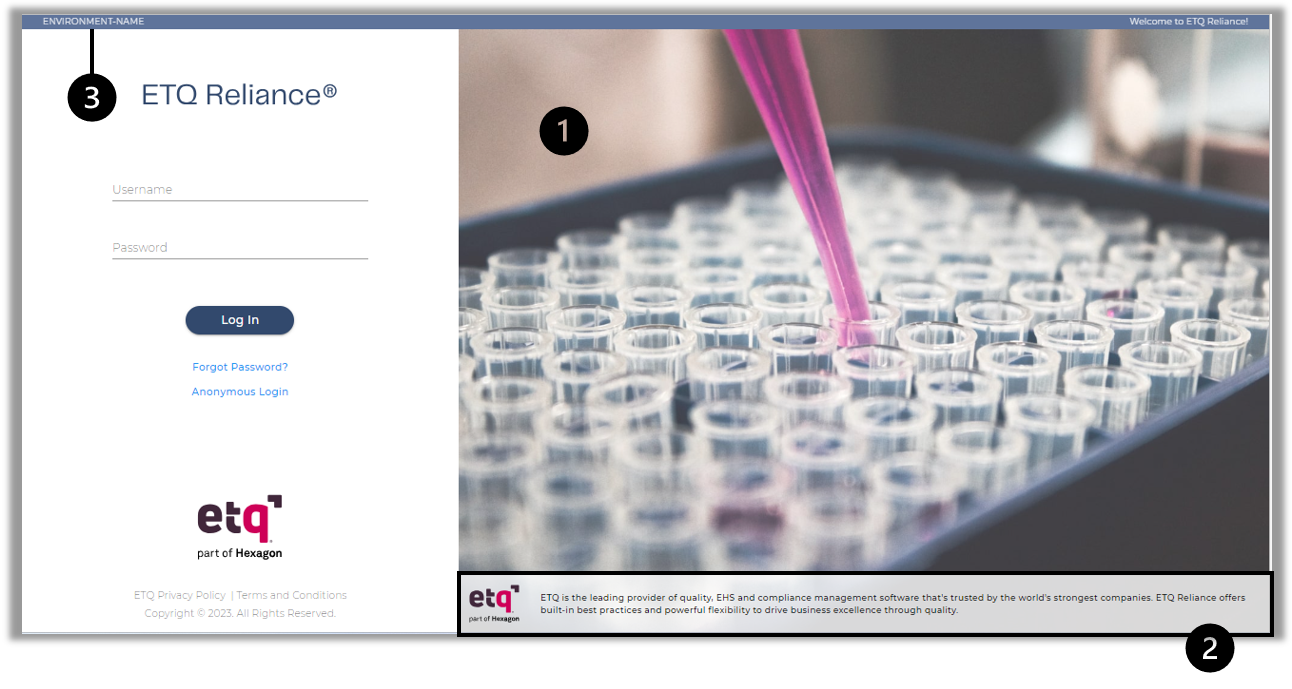
To personalize your environment:
- Log into Reliance and open the System Preferences dialog.
- Go to the Environment tab and update the following fields:
Header Logo: You can upload different logo to be displayed on the top left of the banner bar, considering that the photo size must not exceed 50 KB.
Environment Name: This field has an “environment-name” value by default. You can update it with your preference.
Show banner bar: You can hide or show the Banner Bar from all the system pages by selecting/deselecting this option. Once selected, you can customize the following banner bar parts:
Display environment name: You can hide or show the environment name by selecting/deselecting the “Display environment name” option.
Add free text: You can hide or show the free text, displayed on the right side of the banner bar, by selecting/deselecting the “Add Free Text” option. Once this option is selected, you can edit the Text to Display field.
Banner Background Color.
Banner Text Color.
- Switch to the Company Identity tab and change the following fields of the Login Page section.
Cover Photo: Upload a different cover photo for the login page, considering that the photo size must not exceed 300 KB.
Company Main Logo: Upload a different logo for the company main logo displayed on the login page, considering that the photo size must not exceed 50 KB.
Company Center Logo: Upload a different image for the company center logo displayed above the username and password fields, considering that the photo size must not exceed 50 KB.
Show company identity footer: You can hide or show the Company identity footer of the Login page by selecting/deselecting the “Show company identity footer” option. Once this option is selected, you can edit the following fields to customize the footer.
Company Footer Logo: Upload a different logo for the company footer logo displayed on the login page, considering that the photo size must not exceed 50 KB.
Company Slogan
Footer Background Color
Footer Text Color
- Apply and Close the System Preferences.
|
|
|