Reliance Designer Tab
The application's designer tab shows the application components in collapsible sections. You can see how many components a section contains in its header.
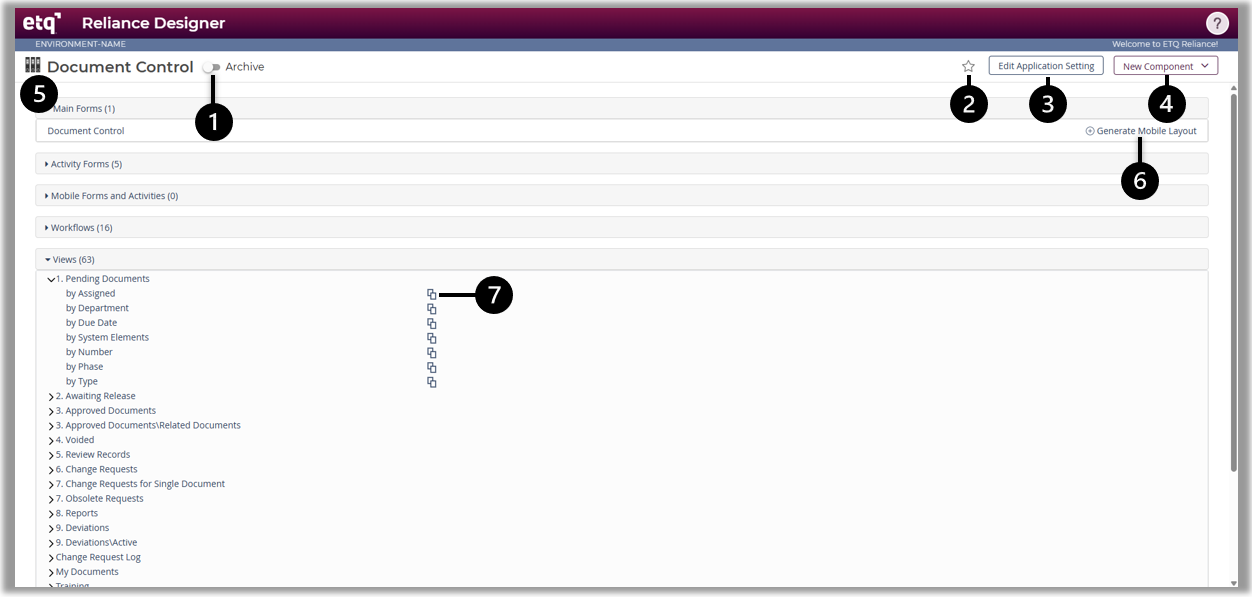
1. Archive Toggle
Enable to open an archive application in design mode and disable it to switch back to the main application's design mode.
2. Favorite Designer Application
Click on the .png) icon to add the designer application or its corresponding designer archive application to your favorites. The favorite designer/archive designer applications will be displayed under the Designer Applications sub-menus of the Favorites menu on the ETQ Reliance main header.
icon to add the designer application or its corresponding designer archive application to your favorites. The favorite designer/archive designer applications will be displayed under the Designer Applications sub-menus of the Favorites menu on the ETQ Reliance main header.
3. Edit Application Settings
- Click on Edit Application Settings.
- Configure the Application Settings fields. See Application Setting for more information.
- Click Apply & Close.
4. Create New Component
- Click on New Component and select the component you want to create from the list.
- Fill out the opened dialog and click Create. The system creates and opens the setting form of the new component.
- Fill out the setting form and click Apply & Close.
5. Accessing Component from Designer
- Open the component's related section. E.g., Main Forms.
- Click on the component's name to open the component's designer page.
Notice that clicking on an Office Integration Template or an Escalation opens their related setting/profile.
6. Generate a Mobile Layout
This action generates a mobile layout. Mobile is required to optimize a form for mobile users.
7. Copy View
Instead of creating a view from scratch, use the Copy View action [ ] to create an identical copy of a similar view, then tweak it to meet the new view requirements.
To copy an existing view:
- Click on the Copy View icon next to the wanted view. This will display the Copy View dialog.
- Fill in the View Name field and click on the Create button. A view designer page will be displayed for a newly created view. The new view will have a name/design name generated based on the View Name you specified in the Copy View dialog and will copy all columns and other configurations from the copied view.
|
|
|