cGMP Requirements
(The following features are only available for cGMP requirements)
Comment History
The Comments pane is an essential part of all ETQ Reliance forms with an Audit Trail type (i.e., Comments History, Field History, or Force Authentication) enabled through their Form Settings.
The Comments pane allows:
- Recording new user comments.
- Viewing comments added by users.
- Viewing all comments added to the document by the user and the system.
- Viewing information about the user who has added the comment.
Audit Trail
The Audit Trail feature automates the process of monitoring and tracking changes and updates performed on the fields within a document. The log will allow you to see how, when, and by whom the document changes were made.
Enabling Field History
In Form Setting, the Audit Log Format is set to Comment History by default, meaning that the Field History feature is disabled.
To enable Field History, go to the Form Setting of the intended form and change the Audit Log format to either "Audit Log" or "Force Authentication".
Accessing Field History
To open the Field History Report:
-
Open the intended document. -
Select "Open Field History" option from the "More" menu in the document toolbar.
The Field History report will open.
Field History Record Information
The Field History record keeps the following information about each field value change:
-
Performed by: THe username of the user who performed the change.
-
Date: When the change was performed.
-
Phase: The phase within which the change was performed.
-
Subform and Record ID: The Field History report shows the Subform Name and Record ID when the change is made on a subform. These fields are left empty when changes are made to the document fields. When a subform record is deleted from the subform, the Field History report will log only the record's fields that were filled in with data.
- Field Name: The field which was changed (this is the field's display name).
- Old Value: This field shows the value of the field that has changed/been removed. Having an empty Old Value field in a record means that the field was changed from Empty to a value.
- New Value: The value that has been added.
- E-Signature: In case Force Authentication is enabled, an icon will be shown in the Comment History section of the document, and 'Yes' will be displayed under this column, indicating that the user applied an electronic signature.
Notice that! The Field History records keep static information that do not look up changes to User ID, User Display Name, or Phase Display Name. If, for example, a Phase display name is modified, the Field History records that were added before the change will keep displaying the Old Phase Name.
Actions that log Field History Records
The Field History keeps track of changes to the document’s fields values including:
Adding new value to an empty field.
Removing an existing value from a field.
Editing a field's value, which may involve changing it to something different or correcting spelling mistakes.
Removing or adding attachments in an attachment field.
Any actions that change the document's current phase as indicated by the system field "ETQ$Current_Phase," including:
Routing: The system logs the username of the user who submitted the phase dialog. This action moves the document from one phase to another, changing the Current Phase field value from the Source Phase to the Target Phase.
Archiving: The system logs the username of the user who approved the new document revision. This action moves the old document version into the archive phase, changing the Current Phase field value from Completed to Archived.
Obsoletion: The system logs the username of the user who approved the Obsolete Request. This action moves the document to the Obsolete phase, changing the Current Phase field value from Completed to Obsolete.
Restoration: The system logs the username of the user who submitted the Restore document dialog. This action brings the document back to the active application at the Draft phase, changing the Current Phase field value from Obsolete to Draft.
Force Authentication
Force Authentication forces the users to use their passwords when performing certain actions based on the Form Settings document.
When Force Authentication is enabled (i.e., selected from the 'Format' menu in the 'Audit Trail' section within the Form settings):
- The Force Authentication feature is applied, and the Login dialog is launched when one of the actions is performed within the document.
- The document is validated after launching the Login Page. If one of the required fields, for example, is not filled in, an error message will be displayed after re-authenticating.
- The Field History report will log changes for every field (i.e., functionality for Enable Field History on Fields is disabled).
- A record is logged in the 'Comments History' section for each action that requires re-authentication according to the option you specified for Force Authentication. The logged record will have a key icon next to the inserted comment within the comment's history area, indicating that the user applied an electronic signature.
If the selected option for Force Authentication is 'Authenticate on every save', the authentication will be required when the user performs any of the following actions:
- Save (including the first save).
When the document is saved for the first time and Force Authentication is enabled:
The Re-Authentication page will be loaded for the current user to re-authenticate. The username will automatically be populated with the current user's name, and the focus will be on the password field. The user will only have to enter the password.
An audit trail is not required on the first save because the document is a record of the initial values.
A comment (eSig) will be added to the Comments section on every save regardless of whether the Comments field includes comments or not.
- Save and Close.
- Creating a new Office Integrated document and launching an existing Office Integrated document.
On the other hand, if the selected option for Force Authentication is 'Authenticate only when routing,' the authentication will be required when you perform one of the following actions:
- Routing the document (forward or back)
- Voiding the document
- Switching to Read mode using the [Read Only] button.
Note that when you must re-authenticate, an e-signature prompt is displayed. This prompt includes Document Type, Phase from where the Re-Authentication page was triggered, User Name, and User Profile Name. The prompt also contains a Cancel button that can be clicked to cancel the performed action and return to the document.
When you enable the Force Authentication feature, both Field Tracking and Comments History features will work together. For example, suppose you click on the [Save] button. In that case, a record will be entered automatically in the 'Comments History' section, even if you have not entered any comments. The comment record will show an icon presenting the action type you performed and the date when it was completed. It will also show an e-sing icon indicating that the record was saved after the e-sign.
Enabling Force Authentication on Certain Phases
Force Authentication can be configured on certain phases by selecting these phases from the 'Update electronic signature section in the following phases' field in the Form Settings.
Signature Meaning
You can add a signature meaning whenever re-authentication is required. The system will display the configured signature meaning in the authentication dialog, Comment History, and the Electronic Signature section.
How to configure signature meaning?
Step 1: Complete form configurations
- Through Reliance Designer, open the targeted Form Designer.
- Click on Edit Form Settings.
- Make sure that the Audit Trail option is set to Force Authentication.
- Add the Electronic Signature system section to the Form through the Designer. We recommend you add the Electronic Signature section within the Access Control tab.
- Click Apply & Close.
Step 2: Meaning of Signature Text Configuration
For Non-Workflow Forms
Through Reliance Designer, open the targeted Form Designer.
Click on Edit Form Settings.
Make sure that the No Workflow option is selected.
Make sure that the Format field of the Audit Trail section is set to Force Authentication.
Select one of the Meaning of Signature Options: Text or EtQScript, and fill in the Meaning of Signature text or EtQScript in the displayed field.
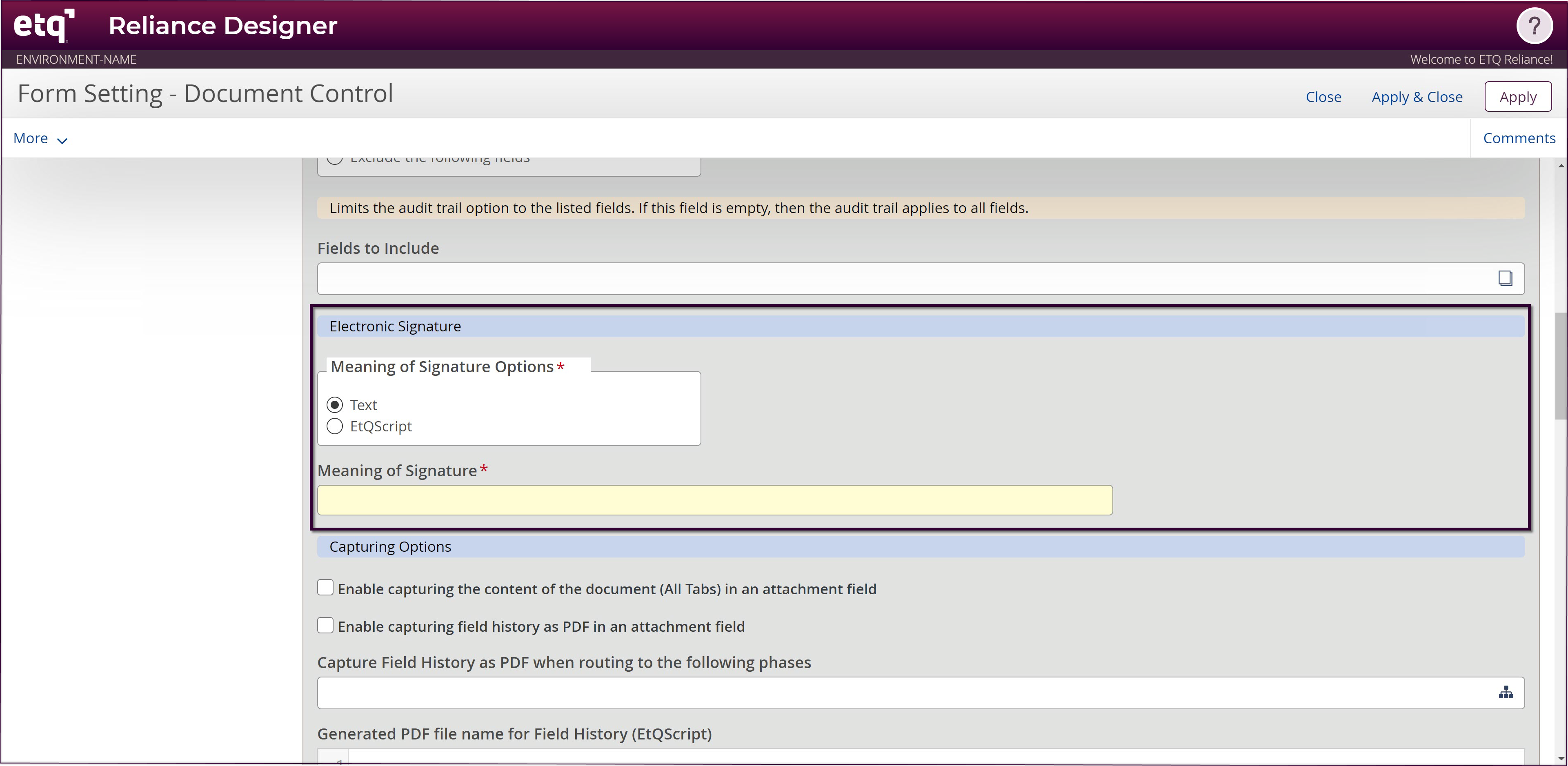
Click Apply & Close.
For Workflow Forms, the Meaning of Signature shall be configured for each Workflow phase that requires force authentication.
- Through Reliance Designer, open the Workflow Designer of the targeted phase.
- Click on the phase card to open the Phase Setting.
- Select one of the Meaning of Signature Options: Text or EtQScript and fill in the Meaning of Signature text or EtQScript in the displayed field.
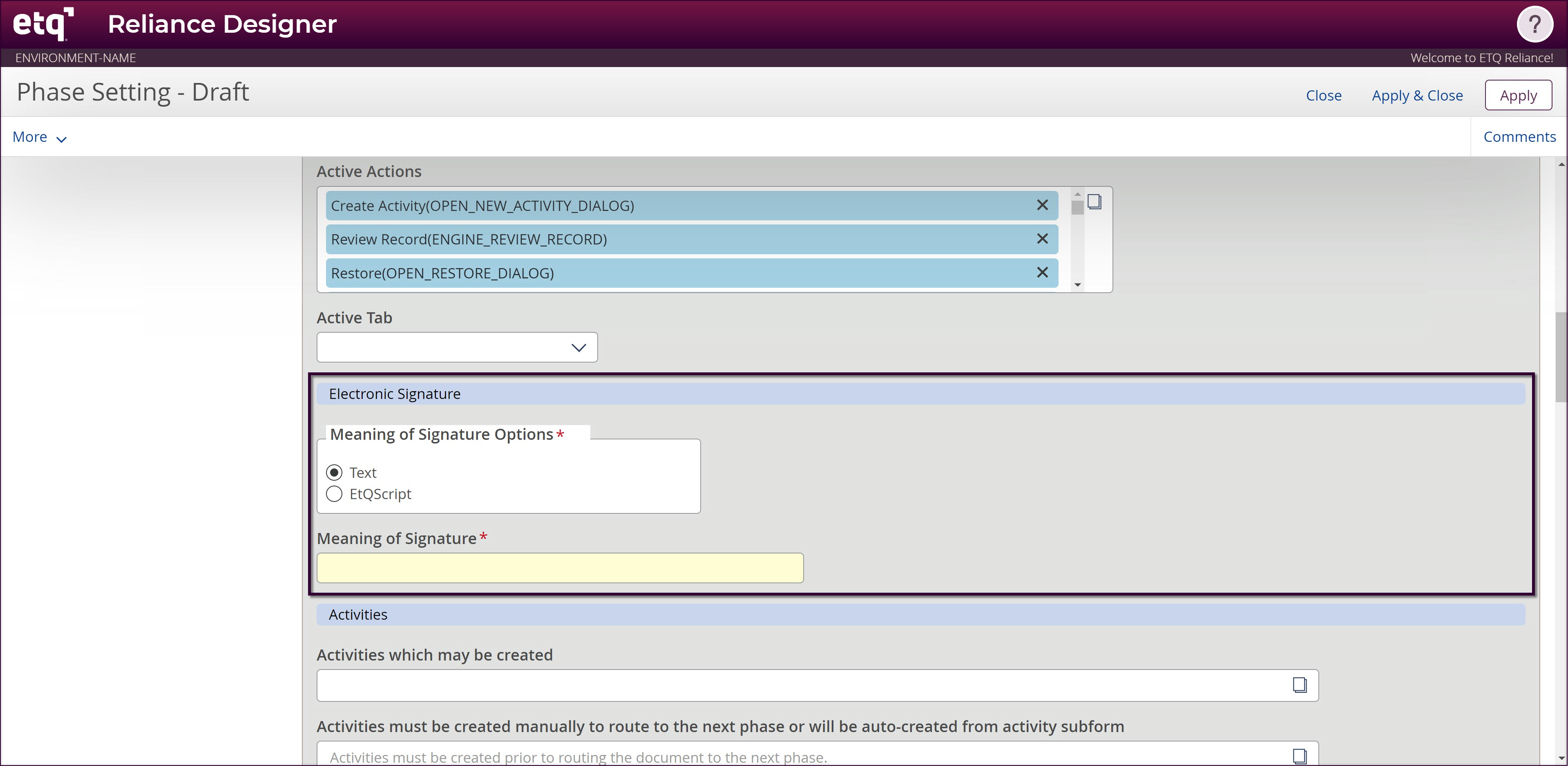
- Click Apply & Close.
The Meaning of Signature text will be displayed in the re-authentication dialog.
|
Notes: The Meaning field will not be displayed in the following cases: The documents could be in different phases when using any global actions (excluding the Global Route action). However, the Comment field in the dialog will become required. Automatically routing documents by a system user. Routing the document backward or to the Void phase. The meaning field will be displayed for every record for the global Route action. If authentication isn't required for a specific phase, the meaning field displays: No Authentication is required for this phase. When restoring a document, the signature meaning will be displayed as configured in the Draft phase. For actions that do not require adding a record to the Electronic Signature section, the Meaning field will be displayed in the force authentication dialog. Still, it may not be logged in the Electronic Signature section based on your configurations. Only the signature meaning of actions that add a record to the Electronic Signature section will be logged in the Audit Log. |
|
|
|